Close the tab.
Keep your place.
NeverLose remembers the show, the episode and the exact minute you stopped, and takes you right back.
No account. No sign-up. Nothing leaves your computer.
Film footage: Tears of Steel and Caminandes 3 © Blender Foundation, CC BY.
Features
Everything you were watching, one click away.
Stop halfway through, close the tab and come back days later. NeverLose has kept your place.
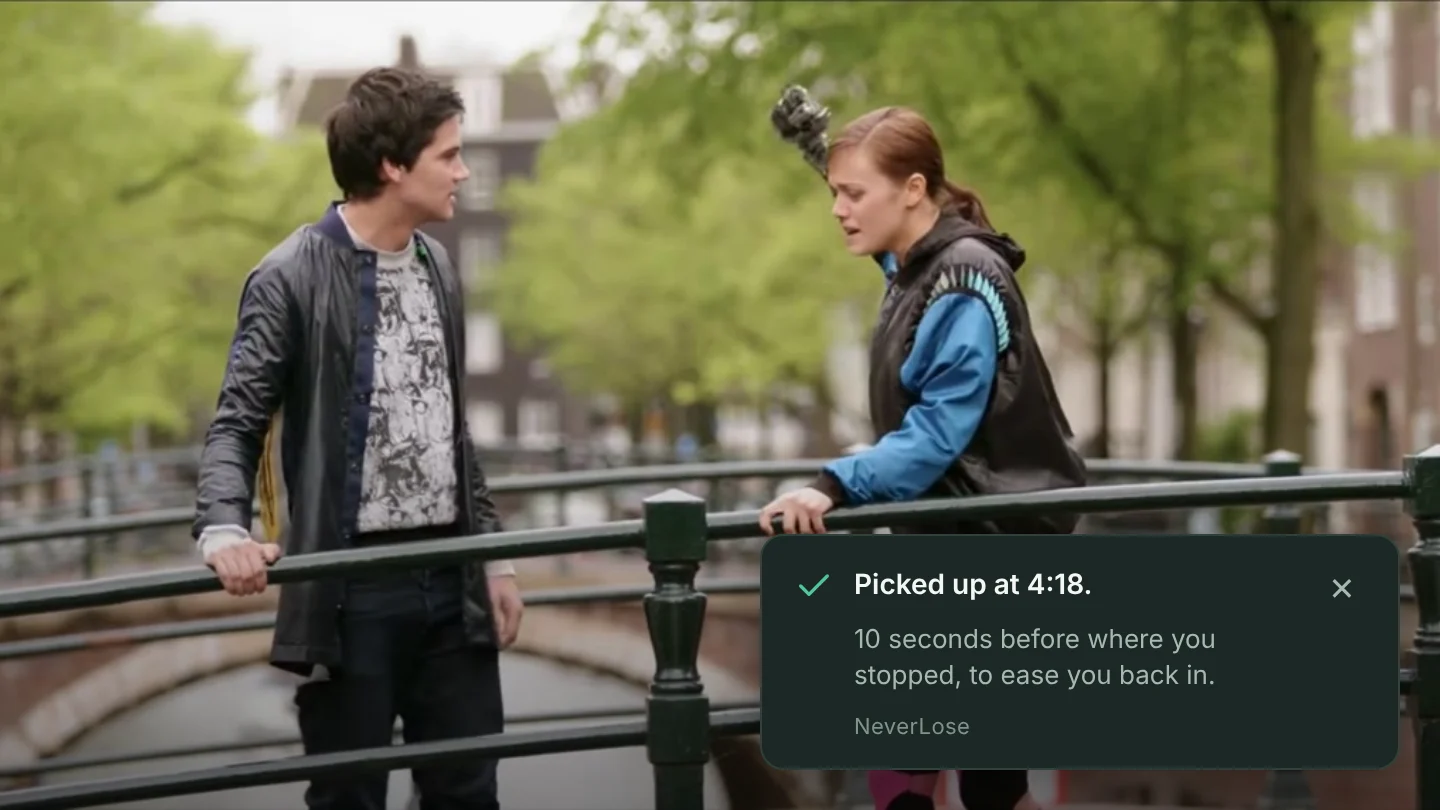
Resume right where you stopped
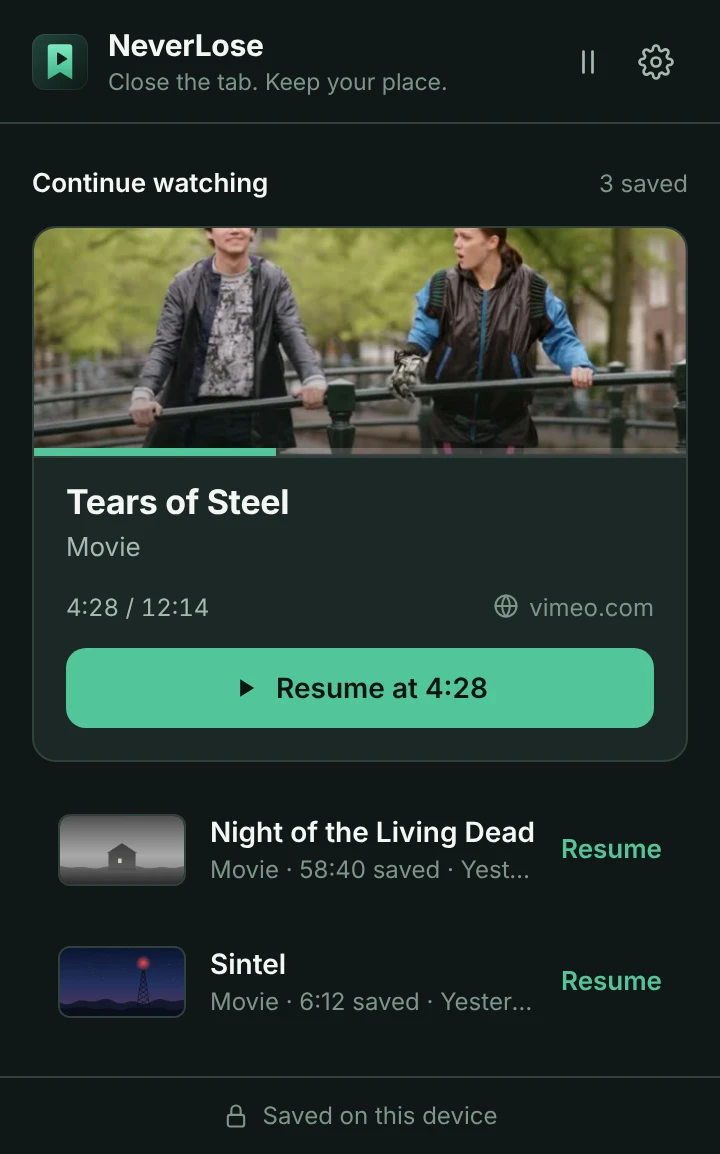
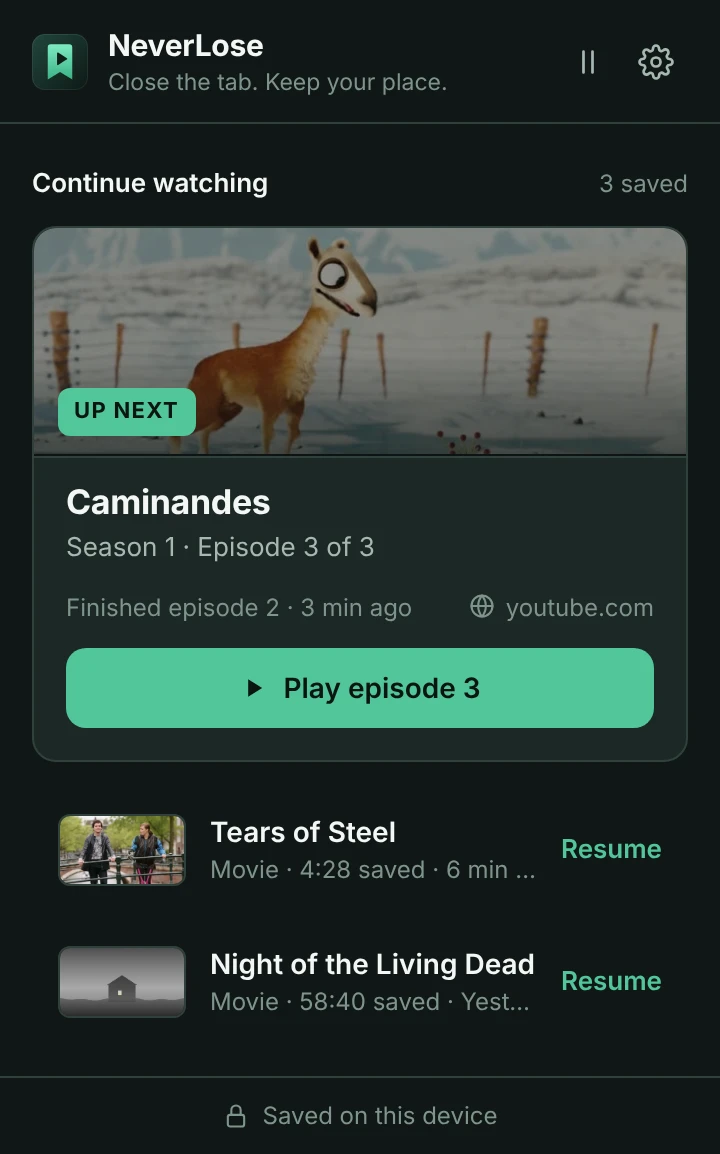
Click the NeverLose icon to see what you were watching, with a picture of where you stopped. One click opens the page and jumps the player back to your spot.
- A few seconds early, so you're back in the scene
- Never starts playing on its own
- Checks it's the same video before it jumps
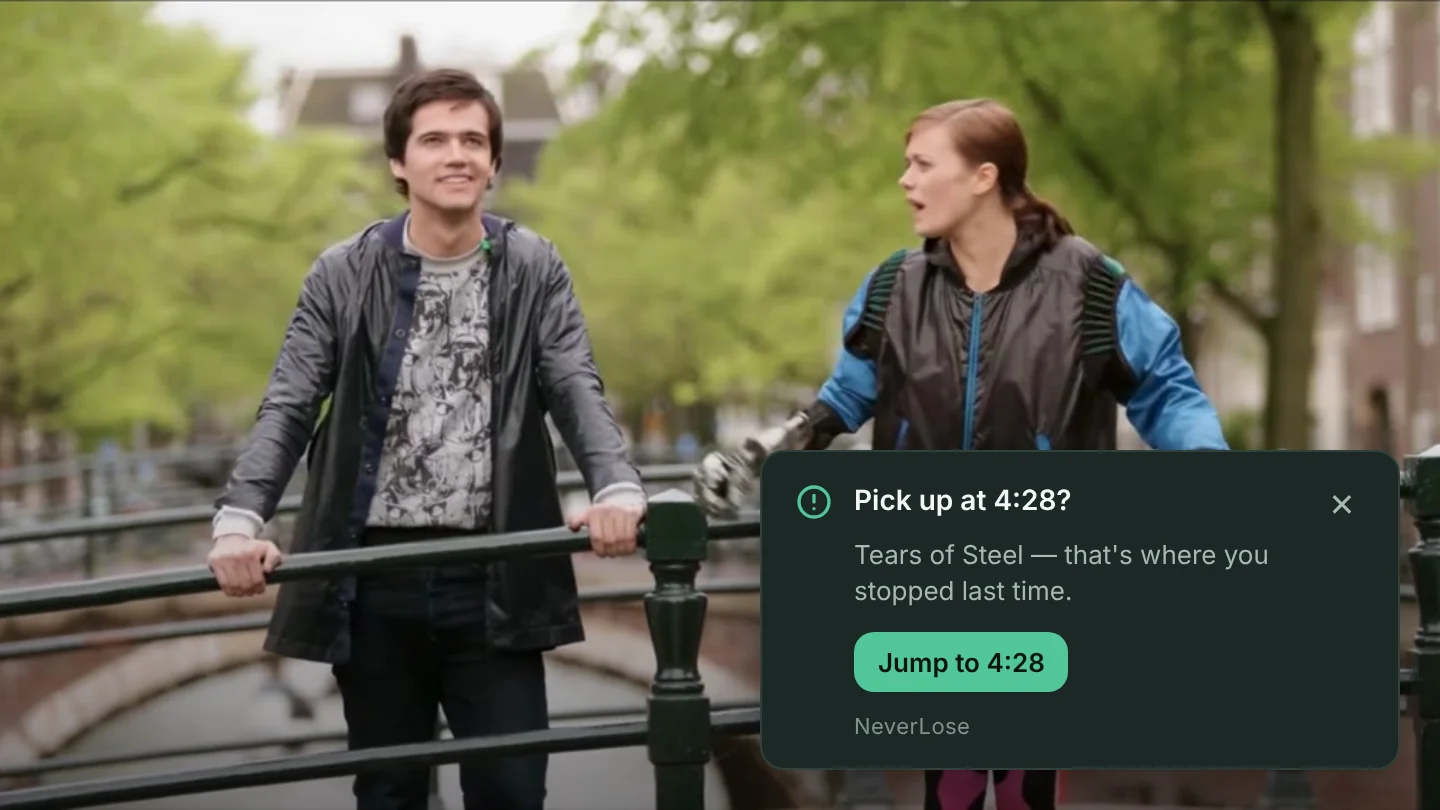
Came back on your own? It notices.
Opened the show from a bookmark or your history? A small notice offers to take you to your saved spot. Ignore it and it goes away.
- Appears right on the page, out of the way
- Your saved place is never overwritten by accident
Finished an episode? The next one's ready.
When the credits roll, NeverLose counts the episode as finished and lines up the next one. You'll see where you are in the season at a glance.
- "Season 1 · Episode 3 of 3"
- Started the next one already? It resumes at its own time
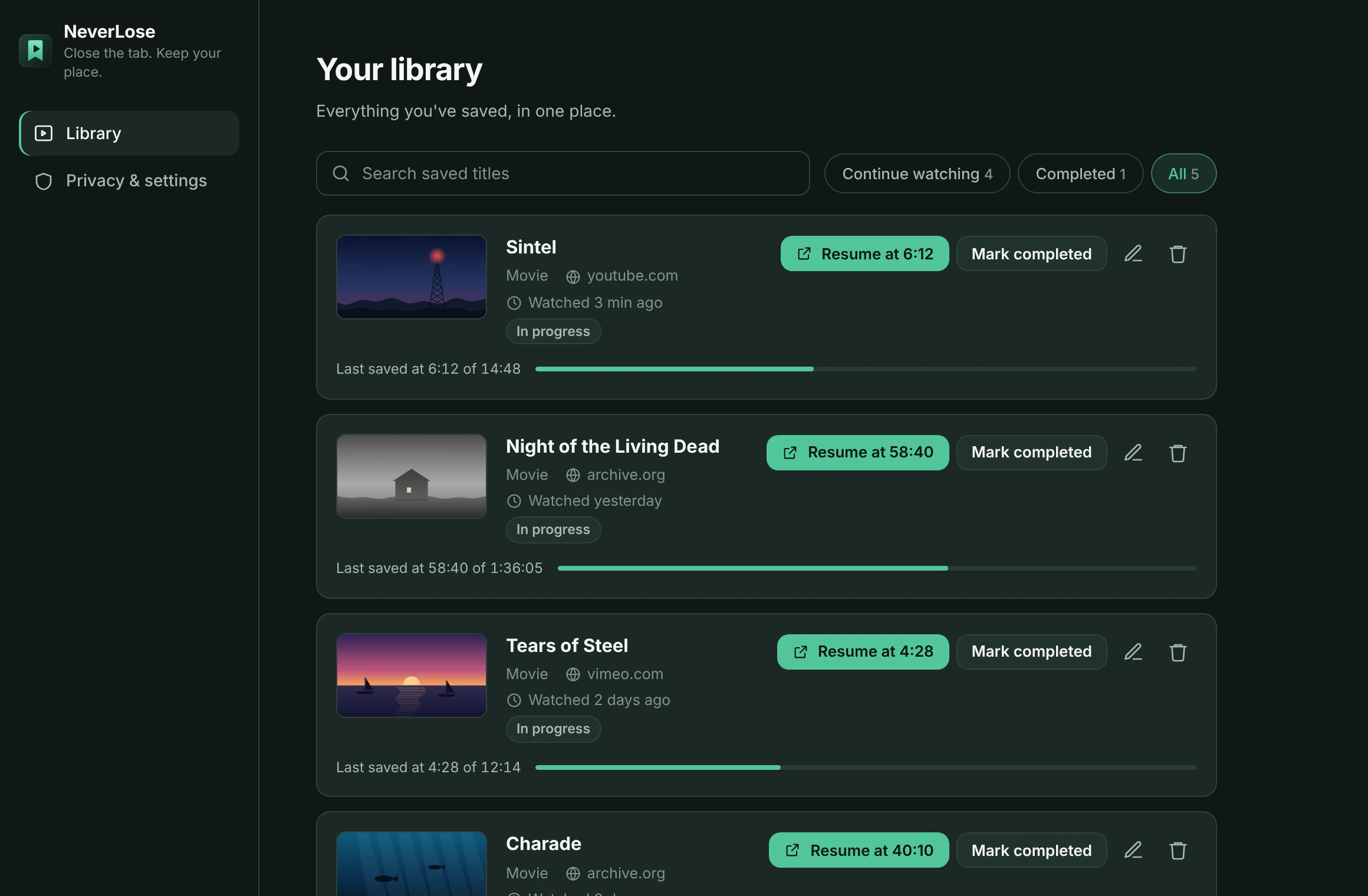
Your whole library, tidy
Search everything you've saved, filter by what's in progress or finished, fix a title or episode, or delete something with undo.
One-key resume
Press Alt+Shift+N (⌥⇧N on Mac) from any tab.
Save any page
Keep a page for later yourself, with the episode and time if you like.
Pause anytime
Pause for an hour, until tomorrow, or until you turn it back on.
Easy to correct
Wrong title or episode? Fix it in a couple of clicks.
How it works
Set up once. Then forget about it.
Turn it on for a site
On YouTube, Vimeo, Internet Archive and Dailymotion it's built in. On other video sites, click Enable on this site and Chrome asks once.
Watch as usual
After a few seconds of playback, NeverLose saves your place and keeps it up to date as you watch, pause or skip.
Come back anytime
Click Resume, or press the shortcut. You're back in the scene, a few seconds before you left.
Private by design
Your history stays on your device.
No account, no servers, no analytics. NeverLose only works on the sites you choose, and you can pause it, export your history or clear everything whenever you like.
- Nothing is sent anywhere. NeverLose makes no network requests of its own.
- No access to any site until you turn it on for that site.
- Never reads passwords, cookies, form contents or payment details.
- Incognito windows are never tracked.
- Uninstalling removes everything it saved.
FAQ
Good questions.
Which sites does it work on?
YouTube, Vimeo, Internet Archive and Dailymotion work out of the box. On other video sites you can turn on automatic tracking yourself; it works when the site's video player can be read. You can save any page by hand.
Does it work in Brave?
Yes. Brave can install extensions from the Chrome Web Store, so you add NeverLose the same way as in Chrome.
Will it start playing videos by itself?
No. NeverLose moves the player to your saved spot, a few seconds early, and leaves pressing play to you. You can change how far back it goes in settings.
What if the site opens a different episode?
NeverLose checks that the page shows the same video before it jumps. If it doesn't, it leaves the player alone and shows you the saved episode and time instead.
What if a player won't let NeverLose jump?
Some players are locked down. In that case NeverLose opens the page and shows your saved time, with a button to copy it. It never works around a site's restrictions.
Does NeverLose see what I watch?
Only on the sites you turn on, and only on your own computer. What it saves stays in your browser's local storage. Nothing is sent to us or anyone else.
How do I remove my history?
Delete single items in the library, or clear everything in Privacy & settings. You can export a copy first if you want one. Uninstalling also removes everything.

Never lose your place again.
Add NeverLose to Chrome or Brave in a few seconds.